Take your digital content to the next level using AiVOOV
One Click Text to Speech Solution
Read More
Create engaging YouTube videos with AI narration, visuals, and captions—without recording your own voice.
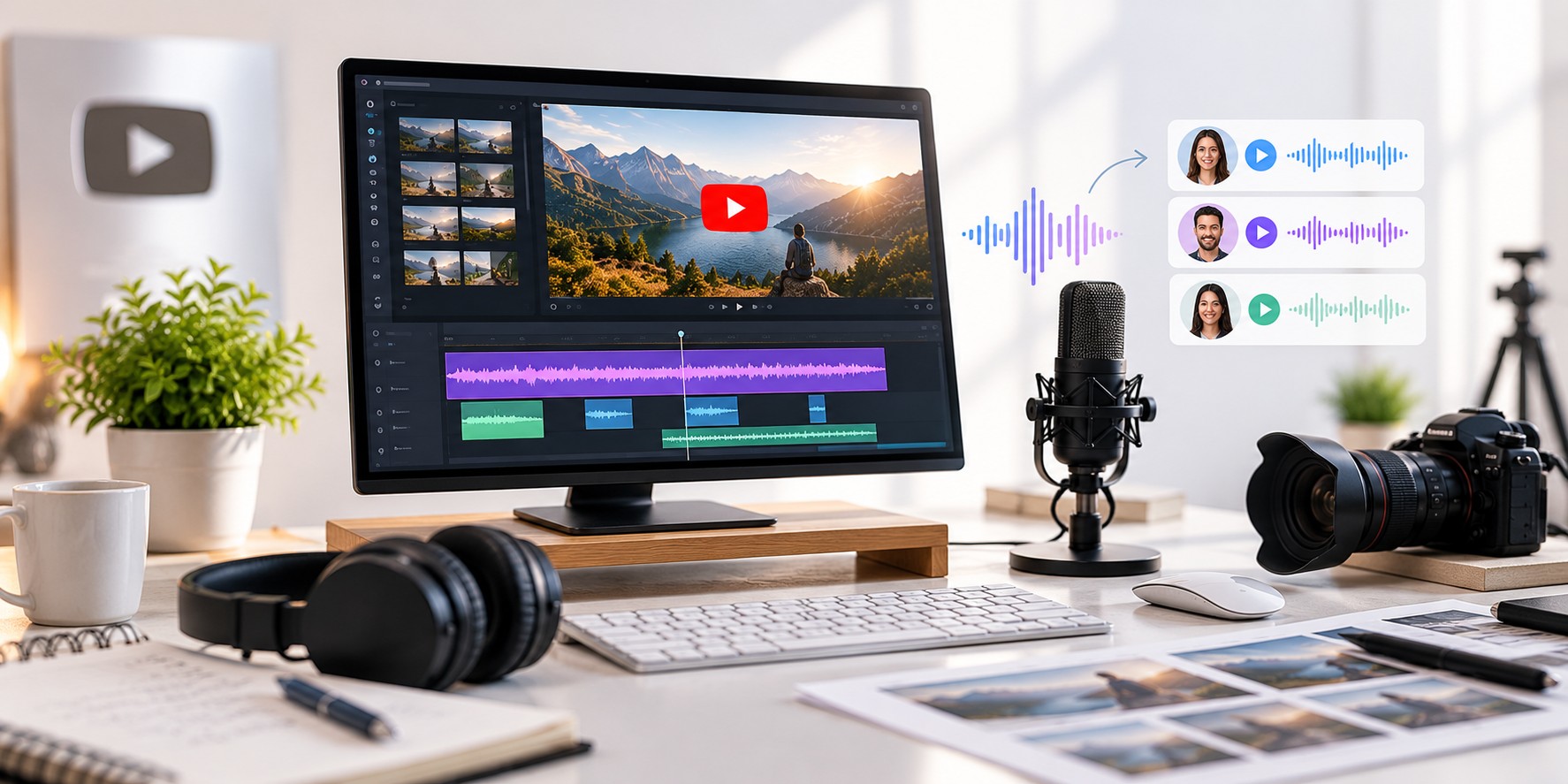
You don't need to record your own voice to create a YouTube video. With a good script, suitable visuals, and an AI voiceover, you can make videos for tutorials, product reviews, educational content, and many other topics.
For many creators, recording narration is one of the hardest parts of making videos. Background noise, repeated takes, and finding the right recording setup can slow down the whole process. An AI voice generator for YouTube videos gives you another way to handle this step.
The important thing is to create videos that people actually want to watch. A natural-sounding voice, useful information, and well-matched visuals still matter. Here's how to bring these pieces together and build a YouTube workflow that works.
Yes. You can use an AI voiceover to narrate a YouTube video instead of recording the narration yourself. You write the script, convert it into speech using a text-to-speech tool, and combine the audio with your video clips, images, screen recordings, or animations.
This approach is useful for creators who prefer not to speak on camera or who want to produce videos without setting up a recording space.
For example, you could create a software tutorial with screen recordings, a history video with relevant photographs, or an educational video with simple graphics. The AI voice provides the narration while the visuals help explain the topic.
You can also create different versions of a video for audiences who speak different languages. This gives you more flexibility when planning content for a wider audience.
Before choosing a voice or opening a video editor, decide what your video will be about.
If you're starting a new channel, choose topics that match your interests and the type of audience you want to reach. Tutorials, software demonstrations, educational explainers, product comparisons, and how-to videos are all formats that can work well with voiceover narration.
Try to answer a specific question or solve a clear problem. Instead of making a video about technology in general, you might explain how to use a particular tool or show viewers how to complete a task.
Search YouTube for related videos and read the comments to understand what people want to learn. You can also use keyword research tools to find the phrases people search for.
A clear topic makes script writing easier and gives your video a stronger purpose from the beginning.
Your script has a direct effect on how the final voiceover sounds. Even a good AI voice can sound unnatural if the writing is full of long sentences, complicated words, or awkward phrases.
Write the way you would explain the topic to a friend. Keep sentences clear, use familiar language, and move from one idea to the next without unnecessary repetition.
A simple structure works for many YouTube videos:
Avoid stretching a short topic into a long video just to increase its length. Viewers should get useful information without unnecessary delays.
Before generating the audio, read the script aloud. This helps you spot sentences that might sound strange when spoken. Add punctuation and natural pauses wherever the narration needs room to breathe.
Choosing the right voice is an important part of creating a good listening experience. A voice that works for a product demonstration may not be the best choice for a documentary or a relaxed educational video.
Think about your topic, audience, and presentation style before selecting a voice.
You should also consider the language and accent your audience is most comfortable with. A voice that suits your viewers can make the content easier to understand.
Listen to a preview before generating the complete narration. Pay attention to pronunciation, pacing, and how the voice handles the type of sentences in your script.
Once your script is ready, you can use an AI voice generator to turn it into narration. This means you don't need to record every line yourself or repeat an entire recording because you changed a few sentences.
With AiVOOV's YouTube video voiceover generator, you can convert your written script into speech and prepare audio for your video.
AiVOOV offers more than 2,300 AI voices across 155+ languages and accents, giving creators options for different types of videos and audiences.
Here's a simple way to get started:
If you want to explore more voice options, visit the AiVOOV AI voice generator page.
The biggest advantage is flexibility. If you update your script later, you can generate a revised voiceover without setting up another recording session.
Generating audio is only the first step. Take a moment to review the narration before adding it to your video.
Listen for words that sound incorrectly pronounced, pauses that feel too short, and sentences that move too quickly. Names, abbreviations, technical terms, and numbers may need special attention.
Here are a few ways to improve the result:
AiVOOV provides voice customization features that can help you adjust elements such as speed, pitch, emphasis, and pauses, depending on the selected voice and available settings.
Don't try to make every sentence sound dramatic. For most tutorials and educational videos, clear and comfortable narration is more useful than exaggerated delivery.
After creating your AI voiceover, it's time to build the video around it. Your visuals should help viewers understand what they're hearing rather than simply fill the screen.
For a software tutorial, use screen recordings to show each step. For an educational video, consider photographs, diagrams, or simple animations. For product content, show the product and its features clearly.
Try to change the visuals when the narration moves to a new idea. You don't need a different clip for every sentence, but the video should not remain on an unrelated image for too long.
If you're creating faceless YouTube videos, pay particular attention to visual variety. Combine relevant clips, screenshots, images, text highlights, and demonstrations where appropriate.
Make sure you have permission to use the images, footage, and music in your video. Don't assume that material found online is free to use.
Captions can make your YouTube videos easier to follow, especially for people watching without sound or viewers who prefer reading along with the narration.
You can prepare subtitles from your script or use a captioning tool to help generate them. If your editing process includes animated captions, keep the text readable and make sure it doesn't cover important details on the screen.
Check the captions against the final audio. Even a small transcription error can change the meaning of a sentence, especially when the video includes names or technical terms.
For videos that use multiple languages, review each subtitle version carefully rather than assuming a direct translation will always sound natural.
Once the voiceover and visuals are ready, assemble them in your video editor. Align the narration with the relevant footage, remove unnecessary gaps, and make sure the video flows naturally.
Background music can help establish a mood, but it should never make the narration difficult to understand. Keep music at a suitable level and use it only when it adds something to the video.
Before exporting, watch the complete video from beginning to end. Check for these common problems:
Export a short test first if you're unsure about your audio levels or video settings. It's easier to correct a small problem before the full project is ready.
Using an AI-generated voice does not automatically determine whether a YouTube channel can be monetized. The overall content, originality, value to viewers, and compliance with YouTube's current policies all matter.
A video that uses AI narration to explain an original tutorial or present useful research is different from a channel that repeatedly publishes low-effort, repetitive videos with little original value.
Focus on creating content that teaches something, answers a question, or gives viewers a reason to keep watching. Write your own scripts, select relevant visuals, check the facts, and edit each video carefully.
You should also review YouTube's current rules about monetization, reused or repetitive content, copyright, and disclosure of synthetic or altered content where applicable. Requirements can change, so check the official YouTube guidance before publishing if you're unsure.
If your videos are useful to people in different countries, you may want to create versions for additional languages.
For example, a software tutorial made in English could also be useful to viewers who prefer Hindi, Spanish, French, German, or another language. A localized voiceover can help make the information more accessible to those audiences.
AiVOOV supports a wide range of languages and accents, so you can explore different voice options for your content.
Before publishing a translated version, check that the script sounds natural in the target language. Review names, product terms, cultural references, and captions. Direct translation alone may not always give you the best result.
Start with the languages that make the most sense for your audience. You can expand to more versions as you learn which content performs well.
You don't need a complicated setup to get started. Use a repeatable process so you can spend less time figuring out what to do next.
Keep your scripts, audio files, and editing templates organized. If you create similar videos regularly, reusable project files can save time and help maintain a consistent style.
As you become more comfortable with the process, look for ways to improve the steps that take the longest. You don't need to automate everything at once.
AI narration can make video production easier, but a few common mistakes can affect the final result.
Choosing a voice without listening to a preview: A voice may sound good in a short sample but not suit your full script. Preview it before generating the complete audio.
Using a script that sounds robotic: Long, repetitive sentences can make even a good voice sound unnatural. Keep your writing conversational.
Ignoring the visuals: A voiceover alone doesn't make a complete video. Use relevant footage, images, demonstrations, or graphics to support the narration.
Skipping the final review: Listen to the audio and watch the video before publishing. Check pronunciation, captions, pacing, and sound levels.
Focusing only on quantity: Publishing more videos is not a substitute for useful content. Prioritize originality, accuracy, and a good viewing experience.
Creating YouTube videos with AI voiceovers can make the production process easier, especially if you don't want to record your own narration. With a clear script, a suitable voice, and visuals that support your message, you can build videos for tutorials, education, product demonstrations, and many other topics.
AiVOOV helps you turn written scripts into AI voiceovers, with voice options across 155+ languages and accents. You can explore the YouTube voiceover generator to get started.
Remember that the voice is only one part of the video. Good research, useful information, relevant visuals, careful editing, and a clear presentation all contribute to the final result.
Start with one video, improve your process as you go, and build a workflow that helps you create content consistently without making production more complicated than it needs to be.

One Click Text to Speech Solution
Read More
Create content faster with AI voiceovers, captions, and smarter workflows.
Read MoreAiVOOV seamlessly integrates with various web platforms, making it a versatile choice for professionals.










What are you waiting for?
Create your account to generate realistic text-to-speech (TTS) audio with our online AI voice generator.
Try for Free